CAT 3.3
Easily specify expected data
With CAT, you can compare any data with any other data, wherever they live. But sometimes the data you expect isn’t in any system at all: it’s just a few values you know.
Now, you can specify these values much more easily, both in CAT Studio and in YAML:
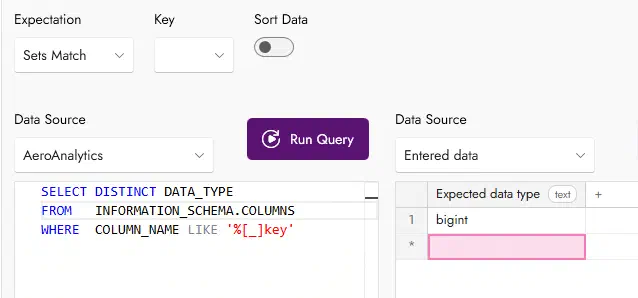
Tests:
- Name: Every key column is a bigint
  First data source: DWH
  First query: |
    SELECT DISTINCT DATA_TYPE
    FROM   INFORMATION_SCHEMA.COLUMNS
    WHERE  COLUMN_NAME LIKE '%[_]key'
  Second data source: EnteredData
  Second query: |
    DATA_TYPE
    bigint
  Expectation: sets match
It was not impossible in previous versions, but this addition avoids clumsy syntaxes like SELECT 'foo' as bar UNION ALL ... and does not need a link to any data source.
How it works: Entered data.
Git in CAT Studio
You can now do basic Git operations directly from CAT Studio. Commit and push changes, pull, switch and create branches, all without leaving CAT Studio.
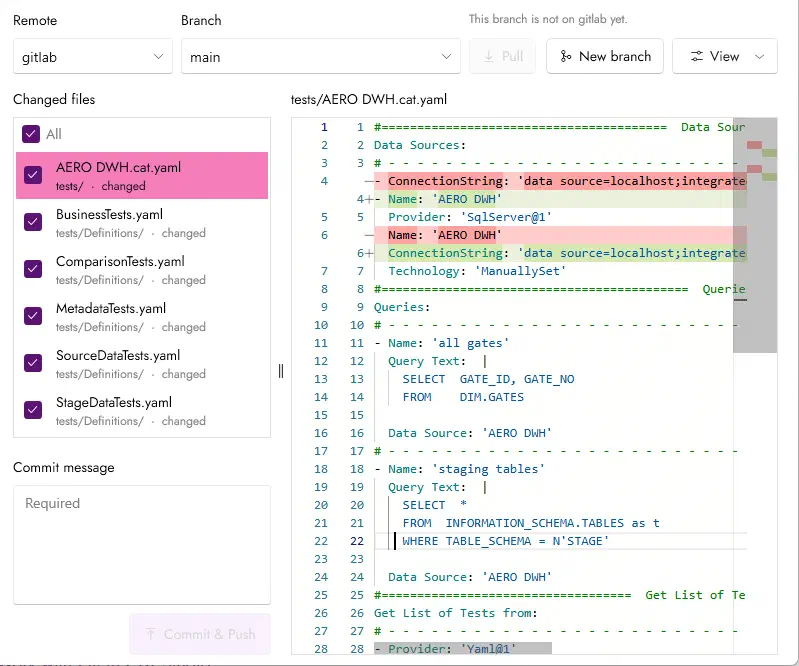
You’ll find Git in the left menu and as a button in the project toolbar (the button shows the name of the active branch), but only if your project is in a Git repository and Git is installed:

How it works: Work with Git in CAT Studio.
CAT CLI improvements
We collect feedback from AI agents, too. Some of them complained about catcli show - our command for showing what the project contains, without actually running anything.
Based on that feedback, we improved it significantly - it has new modes and arguments. It is now friendly both to humans and agents: a summary of the project, the list of tests it would run (with the same selection as catcli run), every property of a test, --raw for the project as written and --format json for scripts.
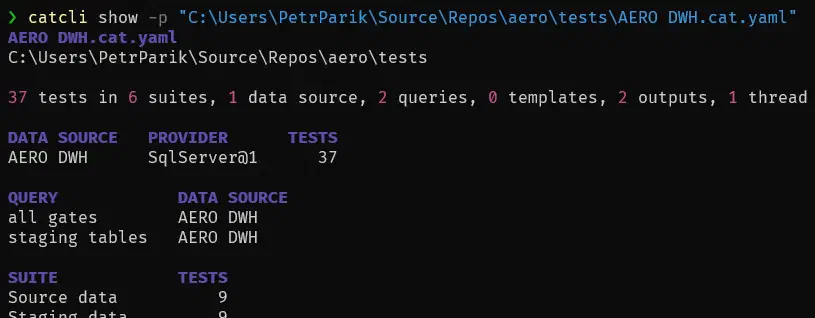
How it works: catcli show.
Simpler CAT Studio interface
We always strive to make data testing as easy as possible. Starting with this release, all advanced features are hidden by default. It makes writing the first test much easier and more straightforward. All you’ll see is name of test, description, tags, data source, query and expectation, plus very few additional test properties.
If you want all test properties, for fine-tuning every aspect of a test, you can easily turn them on in Settings:
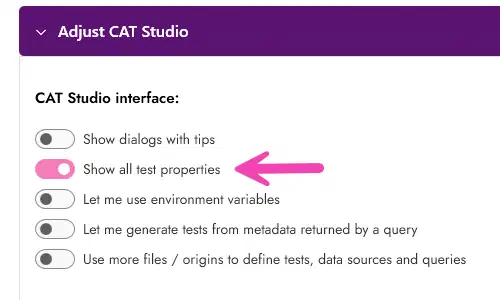
For existing users, nothing changes - you’ll have this setting automatically on after the upgrade.
How it works: CAT Studio settings.
Other improvements
This version also comes with a lot of small improvements:
- CAT Pilot automatically collapses its intermediate work to a summary
- Test connection button on the Data sources page (before, it was only in the dialog)
- Help icons for less intuitive properties, leading directly to docs
- A Variable values switch that shows a query with its variables filled in
- Data source and query names ignore case everywhere
- CAT Studio fits the screen at 150 % display scale
…and many others.
Happy testing!
CAT Team