CAT Pilot
CAT Pilot is your AI assistant in CAT Studio.
What is CAT Pilot
CAT Pilot is an AI assistant that can help you with many things
-
get tips what CAT can do for you
-
set up new data sources
-
author tests
-
add descriptions, test name and tags based on SQL / DAX query
-
create query based on name / description of your tests or based on instructions you provide in the chat window
-
help to identify why a test failed
-
help with performance tuning of a query
-
and many other things, just anything data testing related.
Where do I find CAT Pilot
Click CAT Pilot icon in the top right side area of the CAT Studio window:

Clicking the icon shows/hides the CAT Pilot.
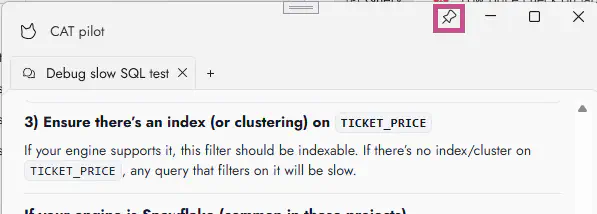
CAT Pilot is by default docked to the main CAT Studio window. Clicking the unpin button the CAT Pilot will move outside to a separate window. Close button just hides it.

When CAT Pilot is undocked, you can use pin button to move it back to the main CAT Studio window:
How do I setup CAT Pilot
In this version of CAT Studio, CAT Pilot needs two things:
-
an open project (just open your project or create a new empty project)
-
at least one “provider” must be configured.
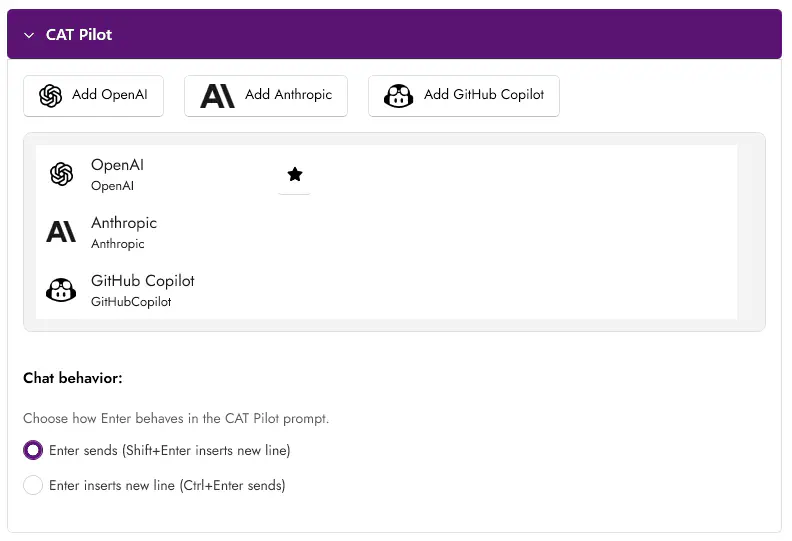
Go to Settings page in CAT studio left menu and find CAT Pilot section:
OpenAI and Anthropic
To use OpenAI and Anthropic models, you need to have an API key. If you have a paid subscription for chat, it does not help. API is a separate service for both OpenAI and Anthropic.
You can obtain API key here:
-
https://platform.openai.com/
-
https://platform.claude.com/settings/keys
There is some “starter” credit, enough for trying out CAT Pilot. Or if you spent it already, send a few dollars, it is enough for using CAT Pilot.
Once you have your API key, click Add OpenAI or Add Anthropic button:
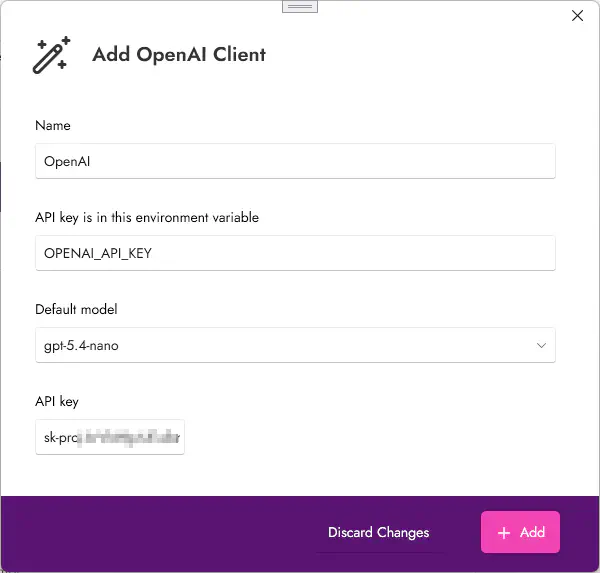
Leave default name (you can have more providers of the same type, such as one for work and one can be your private key). We recommend using default environment variable name - that is where you API key will be stored. If it exists already, you see the key value in “API key” field. Choose default model and click Add.
And that’s it. You can say hello to your CAT Pilot :)
GitHub Copilot
For GitHub Copilot there are more prerequisites as it works different way:
- You must have an active GitHub copilot subscription (https://github.com/features/copilot/plans), start with Free plan
- You must have GitHub Copilot CLI installed (do NOT confuse with GitHub CLI). E.g., you can run
winget install GitHub.Copilot - Verify it is available:
copilot --version(restart your terminal if not, or restart your computer if needed) - If you are not logged in (check
copilot auth status), runcopilot auth login - and then just add provider on CAT Studio settings page (Add GitHub Copilot) - if copilot.exe is on your PATH, all will work
CAT Pilot chat
CAT Pilot chat looks like this:
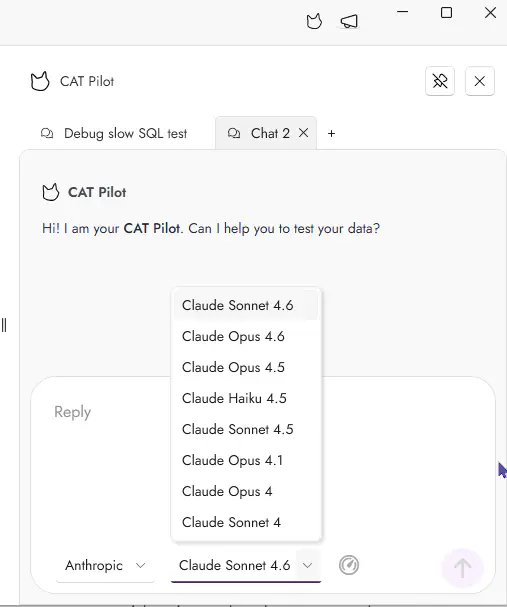
First, select provider (if you set up more) and model. Once you start chatting, the selection is locked — this will be improved in upcoming versions.
Notice you can have more chats at the same time. You can add a chat or close existing one. Chats are not persisted in this version, once you close it or close project or close CAT studio, it will be lost.
The gauge icon next to models combobox shows how many tokens you spent in the current chat.
We plan to persist the chats in upcoming versions - they will be always tied to a project.